
TABLE OF CONTENTS
- Overview
- What It Does
- How to Use It
- Key Concepts
- Supported Metrics
- Chart Features
- Where to Find the Feature
- Important Notes & Known Considerations
- FAQ
Overview
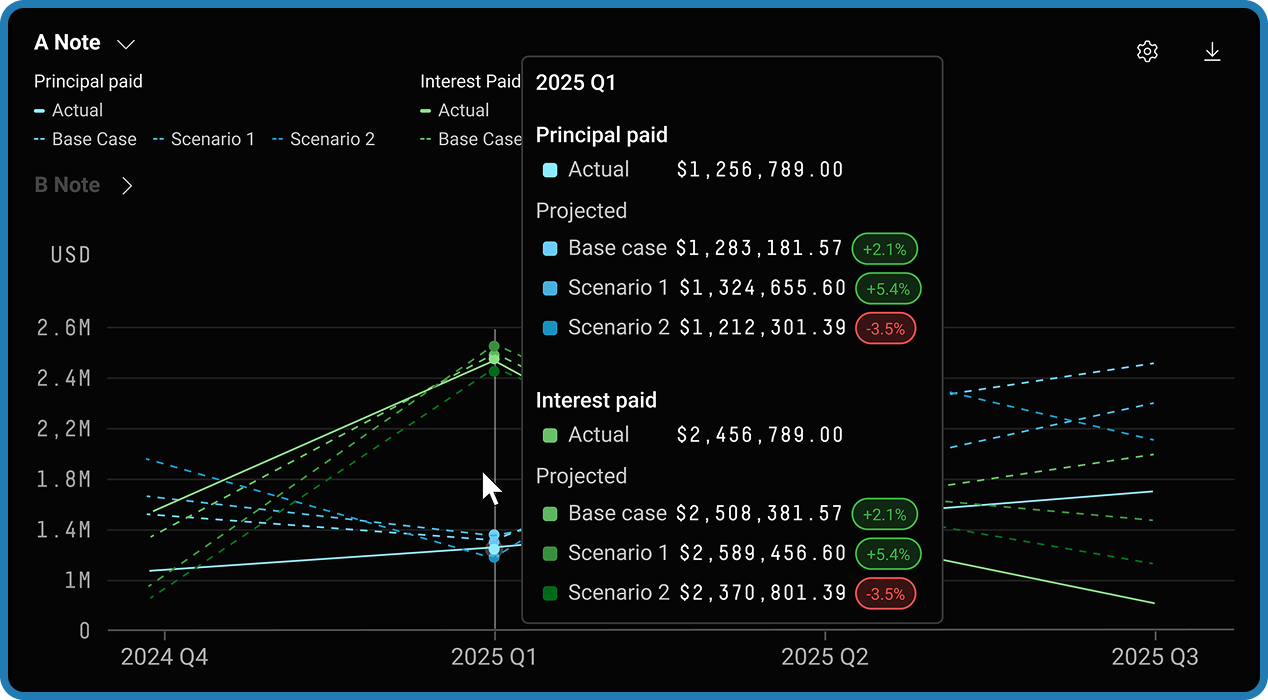
The Projected vs. Realized Cashflows feature enables users to compare modeled (projected) cashflows with actual (realized) cashflows side-by-side. This helps improve transparency into deal and loan performance, supports performance monitoring, and allows users to identify modeling variances over time.
What It Does
This feature allows users to take a previously saved cashflow projection and compare it against actual historical performance data. By placing projected and realized cashflows next to each other in both a chart and a table, users can assess how accurately their assumptions (e.g., prepayment speeds, default rates, recovery assumptions) predicted real-world outcomes.
The comparison is available at the deal, tranche, and collateral level, giving users flexibility in how granularly they want to analyze performance.
How to Use It
Prerequisites
Before using the Cashflow Performance page, you must have at least one saved cashflow projection. Projections are created by running a set of assumptions on the Cashflows page. Navigating to Cashflow Performance without a saved projection results with an empty state — you'll need to go to the Cashflows page first to create and save a projection.
Step-by-Step Workflow
- Create a Cashflow Projection: Navigate to the Cashflows page for your dataset and configure scenario assumptions (e.g., CPR, CDR, recovery vectors, purchase rate vectors, etc.) and run the cashflow then save the projected results by clicking "Cashflow actions" then save for the "Scenario set and projection" option:
 Wait for Performance Data: Historical cashflow performance data is aggregated monthly, as a result, at least one upcoming remittance date will need to pass to have any realized cashflow results to compare to the projection.
Run a Back Dated Projection: If a pool already has performance data associated with it, you can back-date the projection by choosing a prior settlement date when running a cashflow projection to do a backward looking comparison. - Open Cashflow Performance: Navigate to Performance > Cashflow Performance for the desired dataset.

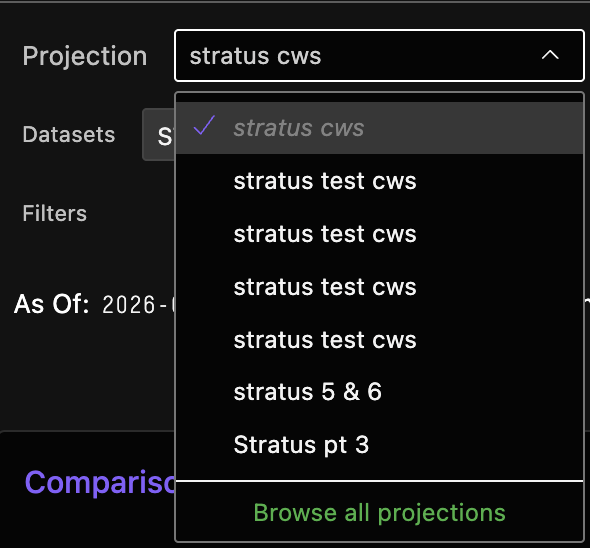
- Select a Projection: Use the projection dropdown to select a previously saved projection. The dropdown will show projections that include the currently selected dataset. Click Browse All Projections to see a broader list.
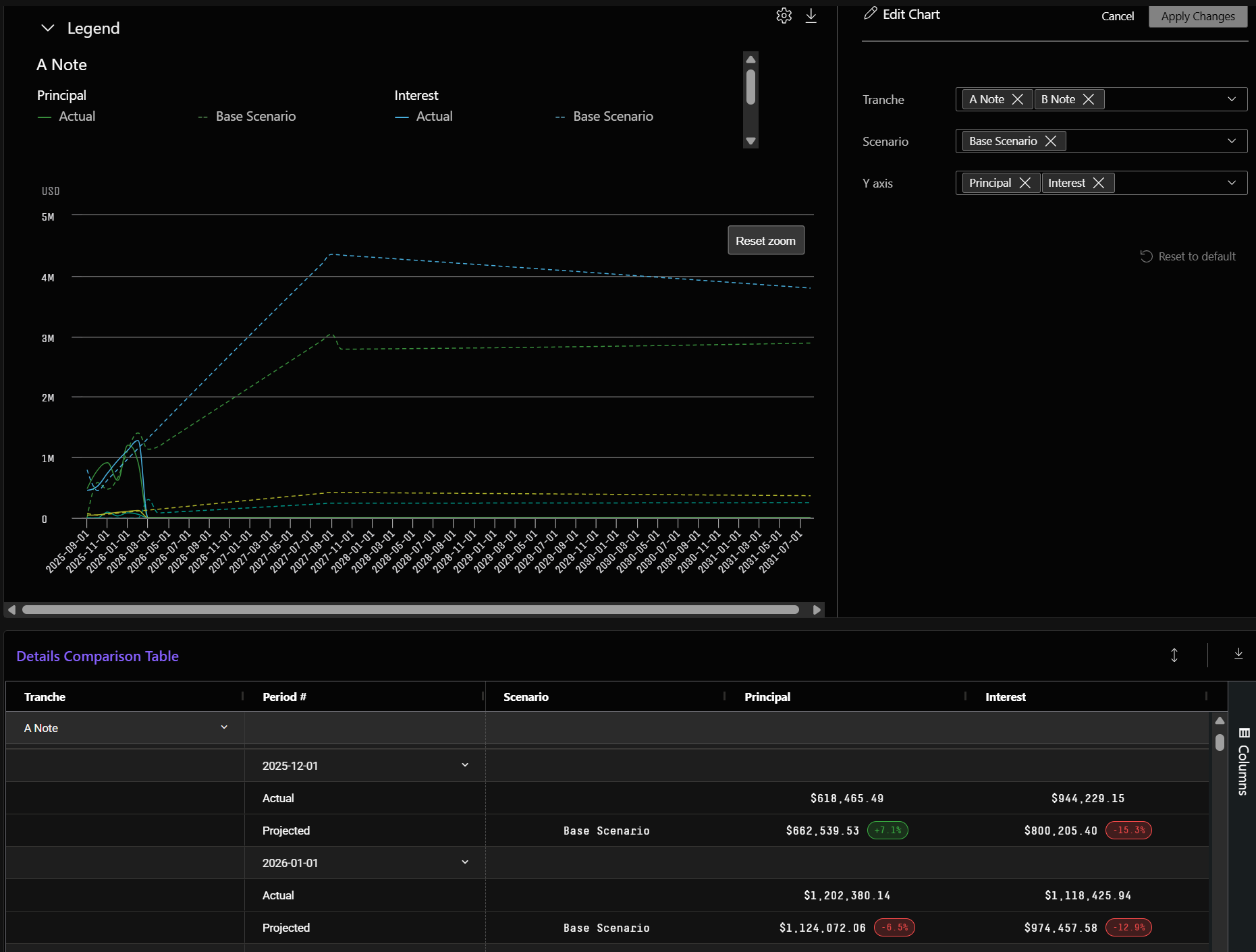
- Configure the Chart: Use the settings panel to define what is displayed in the chart and table, including which Y-axis metrics to show and how to group the data (by tranche, by period, etc.).
- Analyze the Comparison: The chart displays projected vs. actual cashflows as separate lines, and the table presents the data grouped by tranche and period with actual and projected values positioned side-by-side for comparison:
Key Concepts
Projections vs. Scenarios
A projection is a saved cashflow run that includes the scenario assumptions and the resulting output. A scenario defines the input assumptions (e.g., prepayment speeds, default curves). Projections are what you load on the Cashflow Performance page to compare against actuals.
Deal vs. Collateral Cashflows
The feature primarily supports collateral-level cashflow comparisons. Collateral cashflows represent the underlying loan-level performance, which is generally the most valuable comparison for understanding how a deal's assets are performing relative to projections. Tranche-level data is also available for securitized deals with tranche structure.
Filters and Projections
When you load a projection on the Cashflow Performance page, the filters that were applied when the projection was originally created will be automatically re-applied. This ensures the comparison is apples-to-apples. If you switch to a projection that has no saved filters, the filters will be reset.
Dataset Selection
The pool selector on the Cashflow Performance page is read-only — you cannot change datasets directly on this page. The dataset is determined by the projection you select. To analyze a different dataset, select a different projection (via Browse All Projections) that was run against the dataset you're interested in.
Supported Metrics
The comparison covers key cashflow metrics including:
- Interest (aggregate interest paid)
- Principal (aggregate principal paid)
- Scheduled Principal
- Unscheduled Principal
- Payment (total cashflow)
- Recovery
Users can select which metrics to display on the Y-axis of the chart and in the table columns.
Chart Features
- The chart supports zooming: drag on the chart to zoom into a specific time period, use two-finger scroll to zoom in/out, or drag the handles on the mini timeline navigator at the top of the chart.
- The chart displays projected and actual values as separate lines, color-coded in the legend.
- Timeframe options: Data can be viewed on a Monthly or Quarterly basis.
Where to Find the Feature
| Context | Navigation Path |
|---|---|
| Securitization | Securitization > Performance > Cashflow Performance |
| Portfolio Surveillance | Portfolio Surveillance > Performance > Cashflow Performance |
Note: The Browse All Projections modal in Securitization will only show Deal or Collateral projections (those saved from Securitization > Cashflows). The modal in Portfolio Surveillance will only show Portfolio Surveillance projections.
Important Notes & Known Considerations
- You must create a projection before using this page. The Cashflow Performance page does not allow you to create new projections — it only loads previously saved ones.
- Performance data updates monthly. You will need to wait at least one reporting cycle before meaningful actual data is available for comparison or run a projection with a back dated settlement date.
- Private credit deals with upsizing: If collateral grows through additional purchases, early projections may appear low. Use a purchase rate schedule in the cashflow engine to model collateral additions and bond upsizing.
- Multiple datasets: The cashflow engine supports page-level filters for multiple datasets on collateral and portfolio cashflows. Pool-level filters are not applied.
FAQ
Q: I navigated to Cashflow Performance but see an empty page. What do I do? A: You need to create a cashflow projection first. Go to the Cashflows page (in Securitization or Portfolio Surveillance), run a cashflow with your desired scenario assumptions, and save the projection. Then return to Cashflow Performance to load it.
Q: Can I change the dataset on the Cashflow Performance page? A: Not directly via the pool selector. To analyze a different dataset, click Browse All Projections and select a projection associated with a different dataset.
Q: How often is actual performance data updated? A: Historical cashflow performance data for securitizations is updated on a monthly basis.
Q: Can I compare multiple scenarios at once? A: Yes, the chart supports displaying multiple scenario lines alongside actual performance data, so you can see how different sets of assumptions compare to realized outcomes.
Q: Where does this feature live — Cashflows or Performance? A: The feature is located under Performance > Cashflow Performance. This is because it is primarily an analytical tool for reviewing how a deal has performed over time, which aligns with the Performance section where users access all historical performance data for a dataset.