
What's New
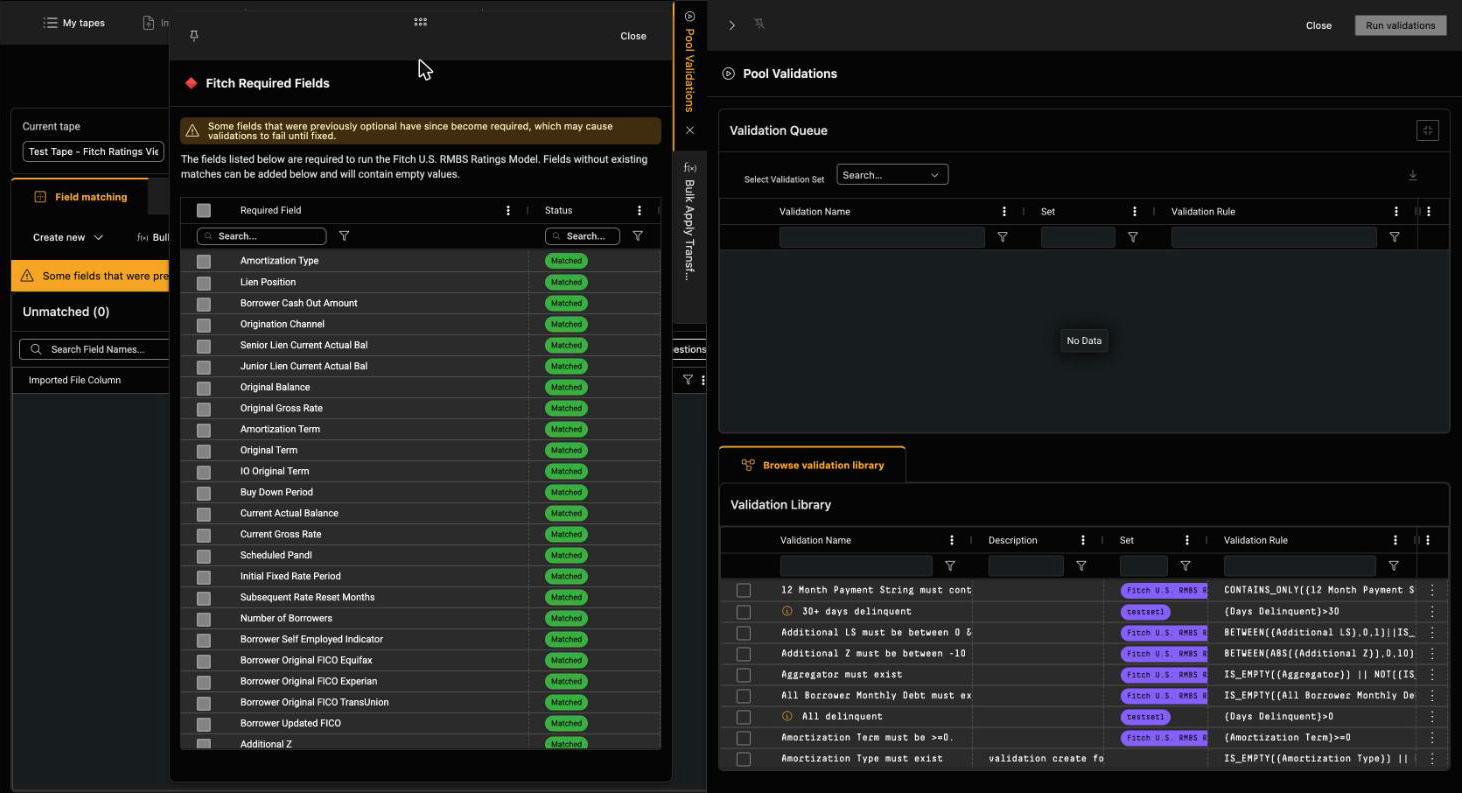
Drawers across dv01 now work together instead of one at a time. When you open a second drawer, such as Edit Columns and a new Pivot Table in Reports, it is added as a tab in a single drawer stack on the right side of the screen rather than replacing the drawer you already had open. You can resize the stack, collapse it out of the way, and switch between tabs with one click. You can also unpin a drawer and move it anywhere on the page, so the information you are checking stays in view while you work in another drawer, such as keeping validation results visible while you fix the fields behind them.
Feature Highlights
- Multiple drawers as tabs: Open as many drawers as you need. Each one is added to the drawer stack as a tab, and you can switch between them without losing your place.
- Resize and collapse: Drag the left edge of the drawer stack to make it wider or narrower, or collapse it to a slim bar of tabs along the right edge when you need the full page.
- Unpin and move a drawer: Pull one drawer out of the stack as a floating panel and place it wherever it is most useful, then pin it back when you are done.
- Picks up where you left off: Drawers tied to a tape or page reopen when you return to it. If you close a drawer with unsaved changes, you are asked to confirm first.
How to Use It
Step 1: Open more than one drawer. Open a drawer as you normally would, then open a second one. For example, on a Securitizations Reports page, select the column icon in Page settings to open Edit Columns, then add a Pivot Table. Both drawers appear as tabs along the left edge of the drawer stack. Select a tab to switch to it, or the X on a tab to close it.
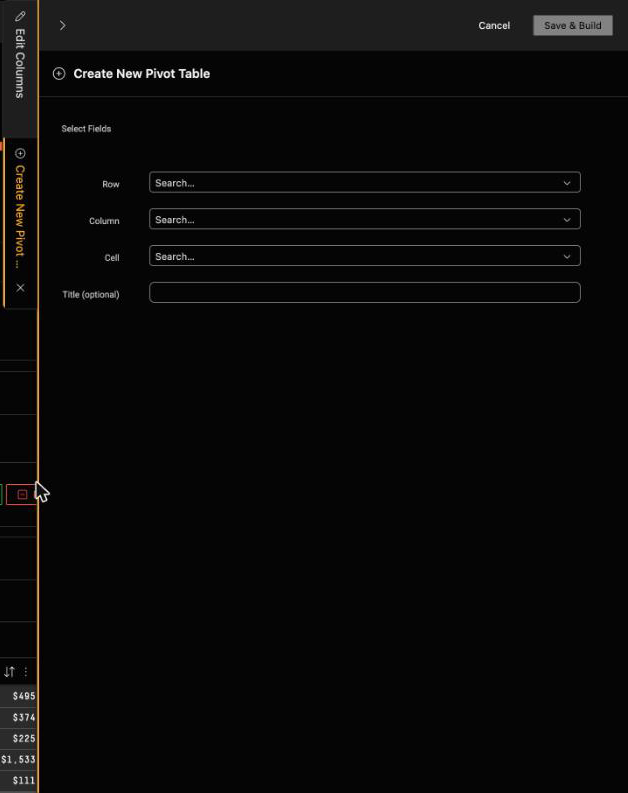
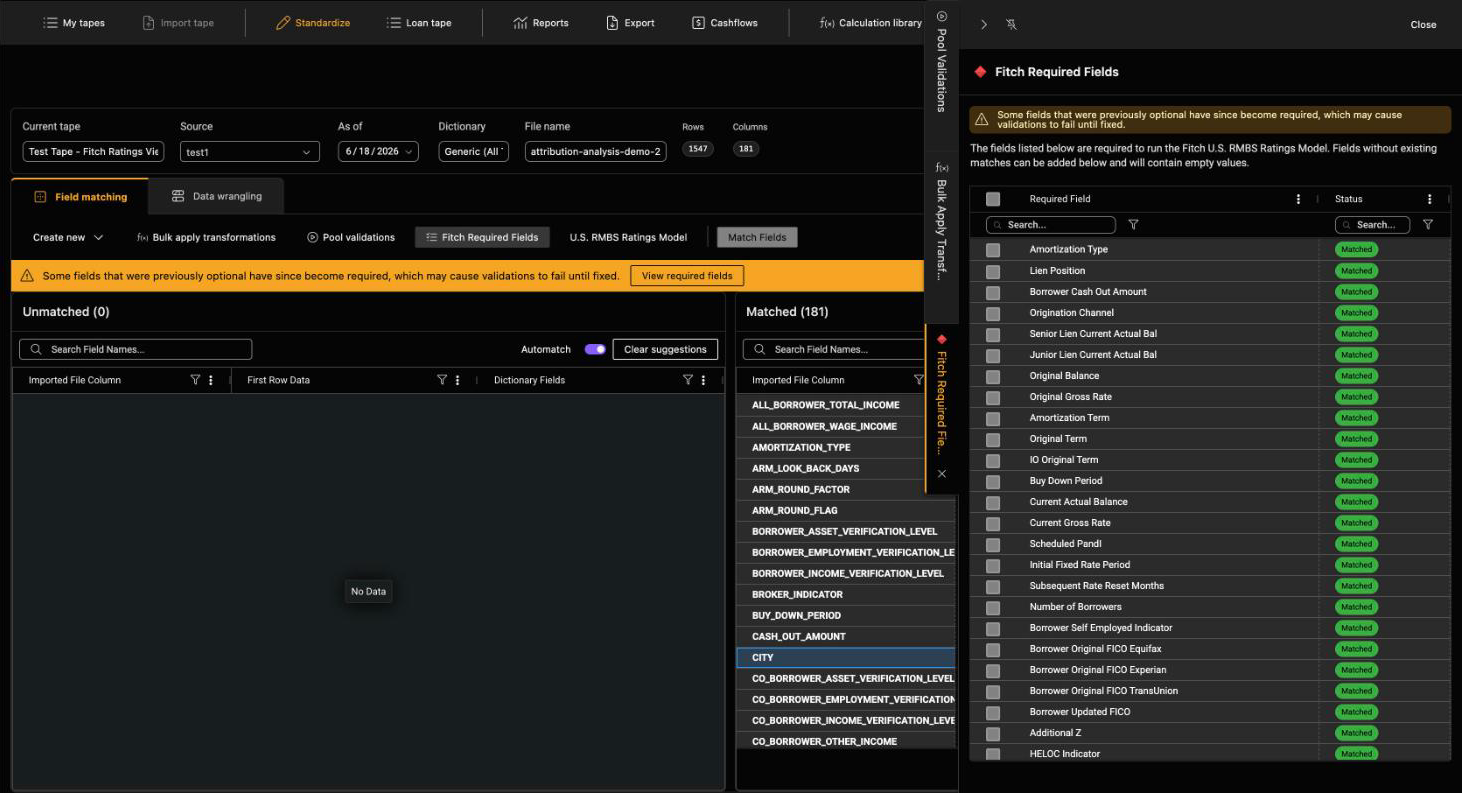
Step 2: Resize the drawer stack. Hover over the left edge of the drawer stack and drag it to make the drawer wider or narrower.
Step 3: Collapse the drawer stack. Select the arrow at the top left of the drawer to collapse the stack. Your open drawers stay available as tabs on the right edge of the screen; select any tab to expand the stack again.
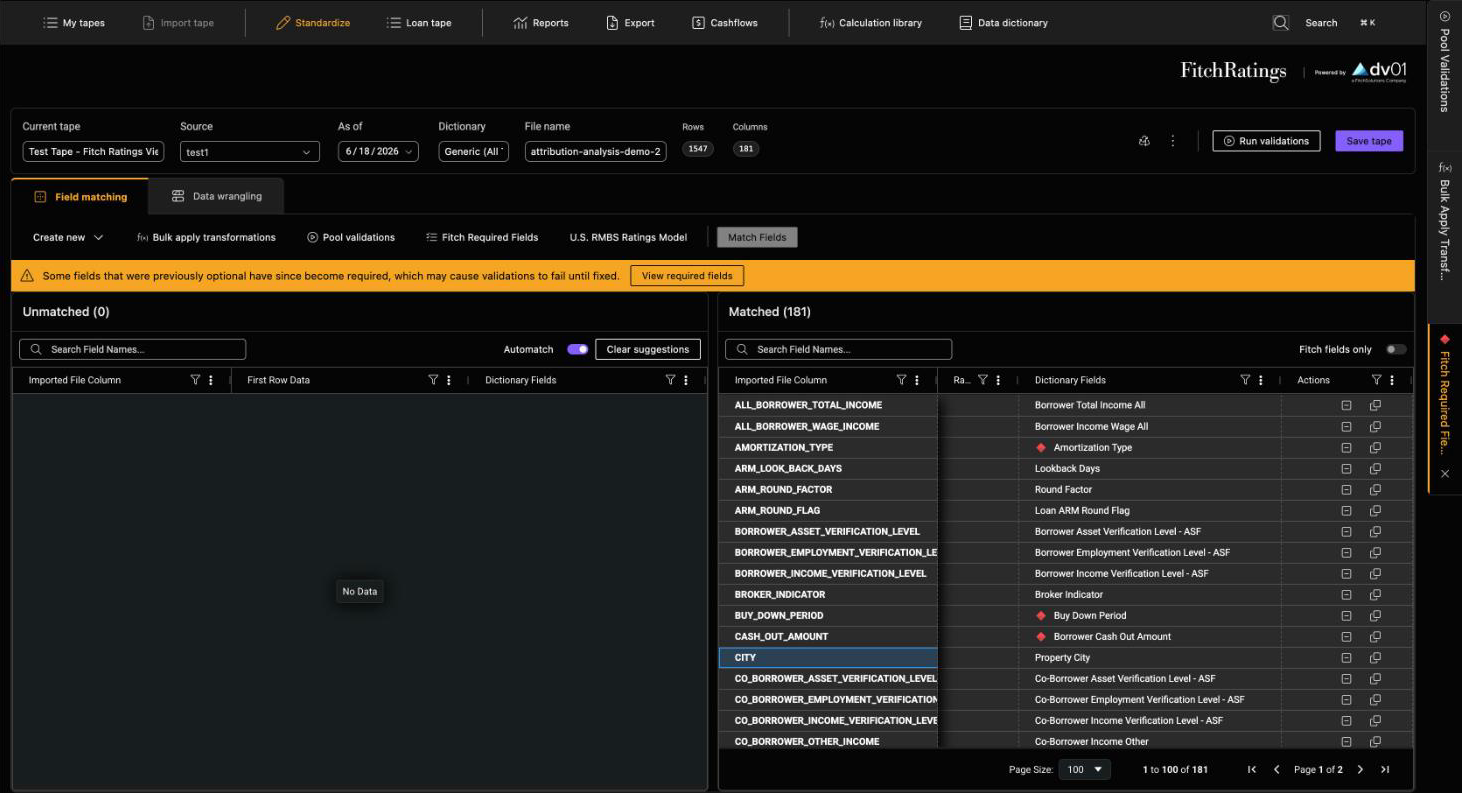
Step 4: Unpin a drawer (Tape Cracker). Select the unpin icon next to the arrow at the top of the drawer. The drawer becomes a floating panel, and the rest of your drawers stay anchored on the right. One drawer can be unpinned at a time.

Step 5: Move it, then pin it back. Drag the floating panel by the handle at the top center to wherever you need it. When you are done, select the pin icon at the top left of the panel to return it to the drawer stack.
Who This Is For
Anyone who works with more than one drawer at a time across dv01, whether configuring reports in Securitizations or preparing and standardizing loan tapes in Tape Cracker.
Why It Matters
Analysis and tape preparation are rarely single-step tasks. You configure columns, then build a pivot; you run validations, then fix fields, transformations, or calculations. Until now each of those meant closing one drawer and reopening another. With tabbed and pinnable drawers, the tools you are moving between stay open, and the information you are checking against can sit right next to the tool you are working in.
Unpinning is currently available in Tape Cracker, for all drawers except Import Tape. Tabs, resizing, and collapsing work wherever drawers are used in the dv01 app.